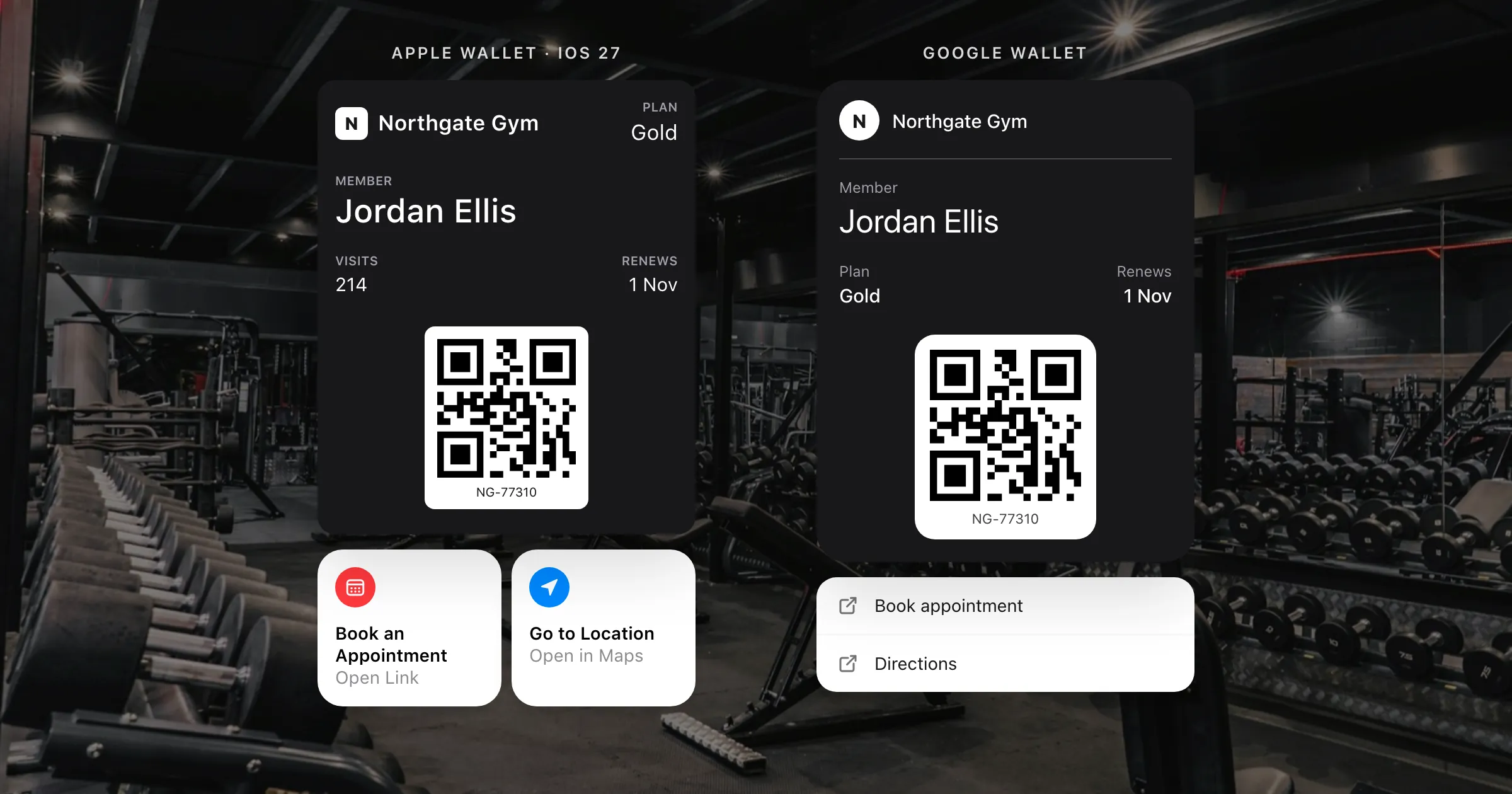
Until iOS 27, anything a pass could link to was in its details: holders had to open the pass, tap the details, and find the link among the terms. Featured actions move the most useful ones to the front. With iOS 27 and watchOS 27, a pass can show up to two actions as cards beneath it in Wallet, such as calling the shop, getting directions or booking an appointment.
This guide covers what featured actions are, the 14 types Apple offers, how to choose between them, and how to add them with WalletPassAPI.
What a featured action is
Apple describes each featured action as an icon, a short call to action, and what happens when it's tapped: a website opens, the Phone app calls a number, or Maps opens at a place. You choose from Apple's predefined types, and each has its own icon and wording, so the cards look the same on every pass and people know what they do.
A pass can have at most two, and Apple recommends no more than two meaningful actions: pick the ones that matter most to the person holding the pass.
Featured actions work on every pass style in iOS 27, and the new poster layout supports them too (Apple Wallet's poster layout).
The 14 action types
Apple groups the types by the kind of pass they suit:
| Action | What it opens | Type | Suits |
|---|---|---|---|
| View Schedule | The event's schedule | viewSchedule | Events |
| Watch Trailer | A trailer for an upcoming event | watchTrailer | Events |
| Listen to Music | A playlist of the artist or artists | listenToMusic | Events |
| Call | The Phone app, to call support | call | Any pass |
| Go to Location | Maps, at one place | place | Any pass |
| Add to Balance | A page to top up a balance | addToBalance | Memberships |
| Order Delivery or Pickup | Ordering for pickup or delivery | order | Memberships |
| Shop Online or In-App | Your online or in-app shop | shop | Memberships |
| View Membership Benefits | Benefits, points and tiers | membershipBenefits | Memberships |
| Book an Appointment | Booking a time slot | bookAppointment | Memberships |
| Book a Car | Car rental | bookCar | Memberships |
| Book a Flight | Booking a flight | bookFlight | Memberships |
| Book a Stay | Booking a hotel or other stay | bookStay | Memberships |
| View Offers and Rewards | The member's offers or rewards | viewOffersRewards | Memberships, events and any pass |
The full list, with Apple's previews of each card, is in Defining the metadata of your Wallet pass.
Choosing your two
Start from what holders do next, not from what you'd like to promote.
- Coffee shop loyalty card: Order Delivery or Pickup, and View Offers and Rewards.
- Gym or club membership: Book an Appointment, and View Membership Benefits.
- Gift card: Add to Balance, and Shop Online or In-App.
- Concert or festival ticket: View Schedule, and Listen to Music.
- Shop or venue with one location: Go to Location, and Call.
- Hotel or airline loyalty: Book a Stay or Book a Flight, and View Membership Benefits.
Each link should go straight to the thing the card promises: the booking page rather than your homepage, and the member's rewards rather than a sign-in screen where you can.
Add them with WalletPassAPI
Featured actions are the pass's featuredActions: up to two, each with an id (your name for it, unique on the pass), a type from the table, and where it goes.
- Most types take an HTTPS
url. calltakes atel:link, such astel:+442071234567.placetakes the venue's Apple Maps Place ID asplaceIdentifier, which you can look up with Apple's Place ID Lookup. It can also have aurl, which Google Wallet uses.
Here's a membership pass with two:
curl "https://api.walletpassapi.com/v1/passes" \
  -H "Authorization: Bearer $WALLET_API_KEY" \
  -H "Idempotency-Key: member-2088" \
  -H "Content-Type: application/json" \
  -d '{
    "organizationName": "Acme Fitness",
    "logoText": "Acme Fitness",
    "description": "Acme Fitness membership",
    "style": "loyalty",
    "primaryFields": [
      {
        "key": "plan",
        "label": "Membership",
        "value": "Gold"
      }
    ],
    "featuredActions": [
      {
        "id": "book",
        "type": "bookAppointment",
        "url": "https://fitness.example.com/book"
      },
      {
        "id": "gym",
        "type": "place",
        "placeIdentifier": "I7C250D2CDCB364A",
        "url": "https://maps.google.com/?q=Acme+Fitness"
      }
    ],
    "barcodeValue": "MEMBER-2088",
    "barcodeFormat": "QR"
}'const res = await fetch("https://api.walletpassapi.com/v1/passes", {
method: "POST",
headers: {
Authorization: `Bearer ${process.env.WALLET_API_KEY}`,
"Content-Type": "application/json",
"Idempotency-Key": "member-2088",
},
body: JSON.stringify({
"organizationName": "Acme Fitness",
"logoText": "Acme Fitness",
"description": "Acme Fitness membership",
"style": "loyalty",
"primaryFields": [
{
"key": "plan",
"label": "Membership",
"value": "Gold"
}
],
"featuredActions": [
{
"id": "book",
"type": "bookAppointment",
"url": "https://fitness.example.com/book"
},
{
"id": "gym",
"type": "place",
"placeIdentifier": "I7C250D2CDCB364A",
"url": "https://maps.google.com/?q=Acme+Fitness"
}
],
"barcodeValue": "MEMBER-2088",
"barcodeFormat": "QR"
}),
});
const data = await res.json();import os
import requests
res = requests.post(
"https://api.walletpassapi.com/v1/passes",
headers={"Authorization": f"Bearer {os.environ['WALLET_API_KEY']}", "Idempotency-Key": "member-2088"},
json={
"organizationName": "Acme Fitness",
"logoText": "Acme Fitness",
"description": "Acme Fitness membership",
"style": "loyalty",
"primaryFields": [
{
"key": "plan",
"label": "Membership",
"value": "Gold",
},
],
"featuredActions": [
{
"id": "book",
"type": "bookAppointment",
"url": "https://fitness.example.com/book",
},
{
"id": "gym",
"type": "place",
"placeIdentifier": "I7C250D2CDCB364A",
"url": "https://maps.google.com/?q=Acme+Fitness",
},
],
"barcodeValue": "MEMBER-2088",
"barcodeFormat": "QR",
},
)
data = res.json()<?php
$ch = curl_init("https://api.walletpassapi.com/v1/passes");
curl_setopt_array($ch, [
CURLOPT_CUSTOMREQUEST => "POST",
CURLOPT_HTTPHEADER => [
"Authorization: Bearer " . getenv("WALLET_API_KEY"),
"Content-Type: application/json",
"Idempotency-Key: member-2088",
],
CURLOPT_POSTFIELDS => json_encode([
"organizationName" => "Acme Fitness",
"logoText" => "Acme Fitness",
"description" => "Acme Fitness membership",
"style" => "loyalty",
"primaryFields" => [
[
"key" => "plan",
"label" => "Membership",
"value" => "Gold",
],
],
"featuredActions" => [
[
"id" => "book",
"type" => "bookAppointment",
"url" => "https://fitness.example.com/book",
],
[
"id" => "gym",
"type" => "place",
"placeIdentifier" => "I7C250D2CDCB364A",
"url" => "https://maps.google.com/?q=Acme+Fitness",
],
],
"barcodeValue" => "MEMBER-2088",
"barcodeFormat" => "QR",
]),
CURLOPT_RETURNTRANSFER => true,
]);
$data = json_decode(curl_exec($ch), true);To change a pass's actions later, send it again with Update a pass. Installed passes refresh on holders' phones, so a seasonal link, such as a new booking page, reaches everyone who has the pass. The dashboard's editor has a Featured actions section that previews each card.
Both actions in a pass must have different ids. A place action without a Place ID, or an action without a link, is refused with a validation_error naming the field, so you find out when you send the pass rather than on someone's phone.
On Google Wallet and older iPhones
Featured actions are Apple's, and need iOS 27. On older iPhones the pass works as before, without the cards.
Google Wallet has no featured action cards. WalletPassAPI shows each action as a link on the Google Wallet pass, worded from its type, so Android holders can still reach it. That's why a place action can carry a url: give it a Google Maps link and it opens the Maps app on Android. Without one, the link goes to the place on Apple Maps.
Checklist
- Two at most, and only ones that help the holder.
- The right type for each, so Wallet shows a card people recognise.
- Links that land on the page the card promises, and work on a phone.
- A Place ID for Go to Location, and a
urltoo if your passes go to Google Wallet. - Keep them current: update the pass when a link changes.
Questions
How many featured actions can a pass have?
Two at most. Apple recommends keeping to the actions that matter most to the person holding the pass.
Which iOS version do featured actions need?
iOS 27 or watchOS 27. On older iPhones the pass works as before, without the cards.
Do featured actions work in Google Wallet?
Google Wallet has no featured action cards. WalletPassAPI adds each action to the Google Wallet pass as a link instead.
What does a Go to Location action need?
The venue's Apple Maps Place ID, which you can look up with Apple's Place ID Lookup. With WalletPassAPI it's the action's placeIdentifier, and an optional url gives Google Wallet a link to open.
Can I change a pass's featured actions after it's installed?
Yes. Update the pass with its new actions, and installed copies refresh on holders' phones.
Further reading
- Apple: Defining the metadata of your Wallet pass
- Apple: Place ID Lookup
- WalletPassAPI: Designing a pass and the pass object