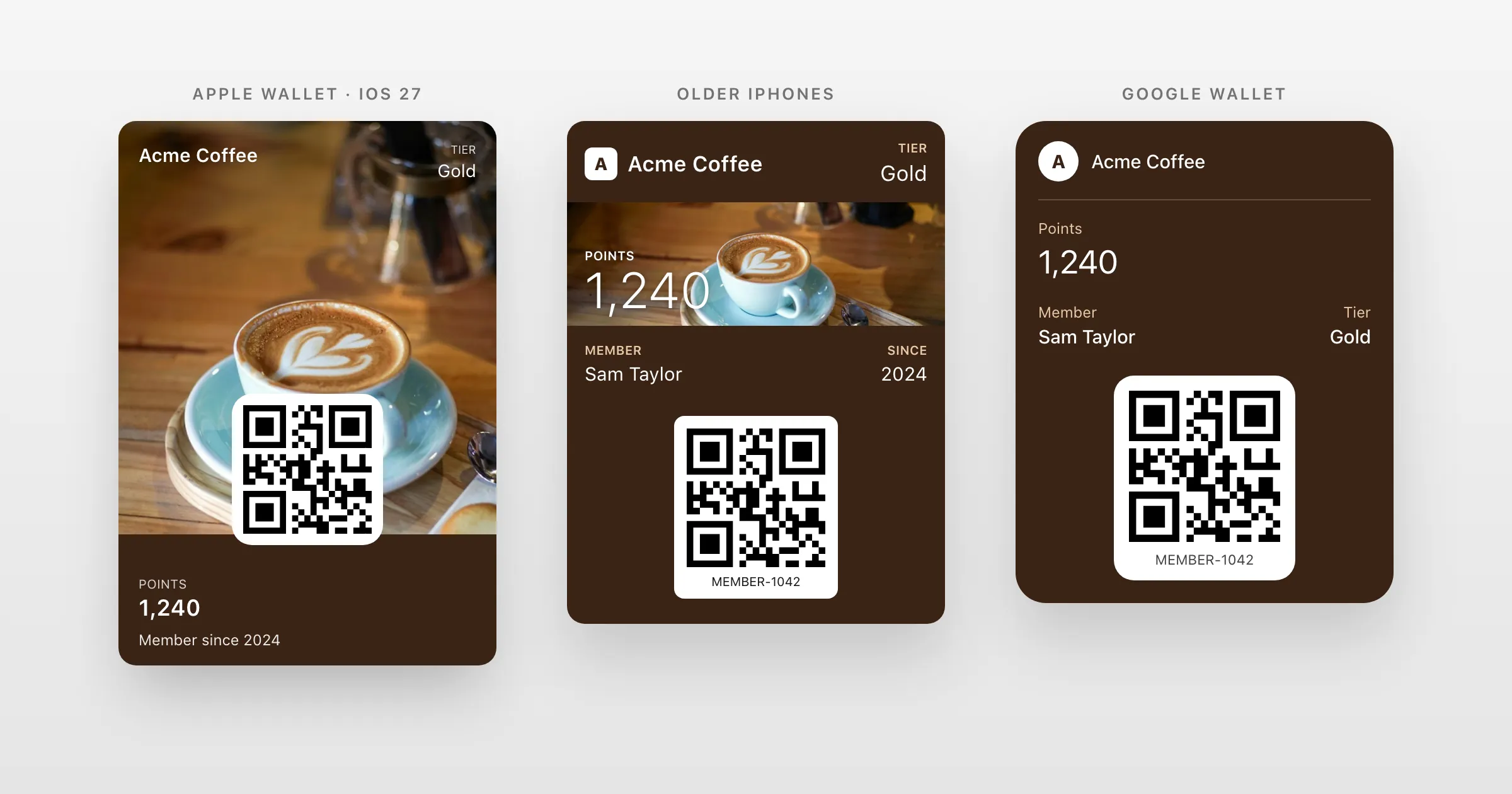
With iOS 27 and watchOS 27, Apple added a new pass style: Poster Generic. It gives membership, loyalty, coupon, rewards and gift card passes the poster look that Apple first made for event tickets: full-height artwork, large modern type, and the details people need laid out by Wallet itself.
This guide covers what the layout is, what goes where, what people on older iPhones see, and how to issue a poster pass with WalletPassAPI.
What changes for your pass
A classic Apple Wallet pass is a card with a coloured background, a logo, rows of fields and a barcode. The poster layout puts your artwork first. In Apple's words, it's "designed to highlight prominent artwork, modern typography, and thoughtful customer notifications".
Apple's Creating a Poster Generic Pass lists what Wallet adds by itself on a poster pass: business information, the barcode, terms and conditions, store locations and other useful details. You provide the content. Wallet decides how it's presented.
It suits passes people keep and come back to:
- loyalty and stamp cards
- memberships and subscriptions
- coupons and offers
- rewards programmes
- gift cards
Poster Generic and event ticket posters
Apple has two poster styles, and they work differently:
| Event ticket poster | Poster Generic | |
|---|---|---|
| Made for | Sports and live performances | Memberships, loyalty, coupons, gift cards and more |
| Content | Semantic tags (event name, venue, seats and so on) are required | Ordinary pass fields, with no event-specific requirements |
| In pass.json | eventTicket with semantic tags | posterGeneric |
Poster Generic builds on the event ticket's presentation, but you choose which content to surface. You don't have to describe your pass as an event.
What goes where
The posterGeneric layout uses the same kinds of fields as other passes:
- a header field, for one short value such as a tier or a balance
- up to four primary fields over the artwork, where classic passes have one
- footer fields near the bottom of the poster
- additional info fields, shown in the pass's details
- back fields, for terms, opening hours and links, also in the details
It has no secondary or auxiliary rows, and Apple's example shows a square QR code.
Who sees it
The poster layout needs iOS 27 or watchOS 27. Older devices don't understand posterGeneric, so Apple's approach is to include a second, classic style in the same pass: storeCard, generic, eventTicket or coupon. Wallet uses the poster when it can and the classic style when it can't. Everyone gets a working pass from the same download.
On Apple Watch, Apple notes that the strip image, the thumbnail and the back of the pass aren't shown.
Google Wallet has no poster layout. A pass built for both wallets shows Google's own layout on Android, from the same content.
Featured actions
Poster passes can carry up to two featured actions: buttons such as "Call", "Go to location" or "View membership benefits" that open a link, a phone number or Maps. They're covered in Featured actions in Apple Wallet.
Issue a poster pass with WalletPassAPI
You don't write pass.json or keep two layouts in step. Give a pass a background image and it gets the poster layout on iOS 27. Its style (here loyalty, a store card) becomes the classic layout for older iPhones. Both are built, signed and kept up to date from one pass.
1. Upload the artwork
Upload the image as a background with Upload an image. It's resized to 1074 × 1344, a 4:5 portrait, so crop to that shape first. Your fields sit over the artwork, so choose an image that still reads well with text on it.
curl "https://api.walletpassapi.com/v1/assets?type=background" \
  -H "Authorization: Bearer $WALLET_API_KEY" \
  -H "Idempotency-Key: acme-poster-autumn" \
  -H "Content-Type: image/png" \
--data-binary @poster.pngimport { readFile } from "node:fs/promises";
const res = await fetch("https://api.walletpassapi.com/v1/assets?type=background", {
method: "POST",
headers: {
Authorization: `Bearer ${process.env.WALLET_API_KEY}`,
"Content-Type": "image/png",
"Idempotency-Key": "acme-poster-autumn",
},
body: await readFile("poster.png"),
});
const data = await res.json();import os
import requests
res = requests.post(
"https://api.walletpassapi.com/v1/assets",
headers={"Authorization": f"Bearer {os.environ['WALLET_API_KEY']}", "Idempotency-Key": "acme-poster-autumn", "Content-Type": "image/png"},
params={
"type": "background",
},
data=open("poster.png", "rb"),
)
data = res.json()<?php
$ch = curl_init("https://api.walletpassapi.com/v1/assets?type=background");
curl_setopt_array($ch, [
CURLOPT_CUSTOMREQUEST => "POST",
CURLOPT_HTTPHEADER => [
"Authorization: Bearer " . getenv("WALLET_API_KEY"),
"Content-Type: image/png",
"Idempotency-Key: acme-poster-autumn",
],
CURLOPT_POSTFIELDS => file_get_contents("poster.png"),
CURLOPT_RETURNTRANSFER => true,
]);
$data = json_decode(curl_exec($ch), true);The answer's reference is what the pass uses, such as asset:asset_k3m9q2w7x4n8p1r6.
2. Create the pass
Put the reference in backgroundURL, and fill the fields as you would for any pass. The poster can show up to four primary fields.
curl "https://api.walletpassapi.com/v1/passes" \
  -H "Authorization: Bearer $WALLET_API_KEY" \
  -H "Idempotency-Key: member-1042" \
  -H "Content-Type: application/json" \
  -d '{
    "organizationName": "Acme Coffee",
    "logoText": "Acme",
    "description": "Acme Coffee loyalty card",
    "style": "loyalty",
    "backgroundURL": "asset:asset_k3m9q2w7x4n8p1r6",
    "headerFields": [
      {
        "key": "tier",
        "label": "Tier",
        "value": "Gold"
      }
    ],
    "primaryFields": [
      {
        "key": "points",
        "label": "Points",
        "value": "120",
        "changeMessage": "You now have %@ points"
      },
      {
        "key": "member",
        "label": "Member",
        "value": "Sam Taylor"
      }
    ],
    "footerFields": [
      {
        "key": "since",
        "label": "Member since",
        "value": "2024"
      }
    ],
    "backFields": [
      {
        "key": "terms",
        "label": "Terms",
        "value": "Points expire 12 months after they'\''re earned."
      }
    ],
    "barcodeValue": "MEMBER-1042",
    "barcodeFormat": "QR"
}'const res = await fetch("https://api.walletpassapi.com/v1/passes", {
method: "POST",
headers: {
Authorization: `Bearer ${process.env.WALLET_API_KEY}`,
"Content-Type": "application/json",
"Idempotency-Key": "member-1042",
},
body: JSON.stringify({
"organizationName": "Acme Coffee",
"logoText": "Acme",
"description": "Acme Coffee loyalty card",
"style": "loyalty",
"backgroundURL": "asset:asset_k3m9q2w7x4n8p1r6",
"headerFields": [
{
"key": "tier",
"label": "Tier",
"value": "Gold"
}
],
"primaryFields": [
{
"key": "points",
"label": "Points",
"value": "120",
"changeMessage": "You now have %@ points"
},
{
"key": "member",
"label": "Member",
"value": "Sam Taylor"
}
],
"footerFields": [
{
"key": "since",
"label": "Member since",
"value": "2024"
}
],
"backFields": [
{
"key": "terms",
"label": "Terms",
"value": "Points expire 12 months after they're earned."
}
],
"barcodeValue": "MEMBER-1042",
"barcodeFormat": "QR"
}),
});
const data = await res.json();import os
import requests
res = requests.post(
"https://api.walletpassapi.com/v1/passes",
headers={"Authorization": f"Bearer {os.environ['WALLET_API_KEY']}", "Idempotency-Key": "member-1042"},
json={
"organizationName": "Acme Coffee",
"logoText": "Acme",
"description": "Acme Coffee loyalty card",
"style": "loyalty",
"backgroundURL": "asset:asset_k3m9q2w7x4n8p1r6",
"headerFields": [
{
"key": "tier",
"label": "Tier",
"value": "Gold",
},
],
"primaryFields": [
{
"key": "points",
"label": "Points",
"value": "120",
"changeMessage": "You now have %@ points",
},
{
"key": "member",
"label": "Member",
"value": "Sam Taylor",
},
],
"footerFields": [
{
"key": "since",
"label": "Member since",
"value": "2024",
},
],
"backFields": [
{
"key": "terms",
"label": "Terms",
"value": "Points expire 12 months after they're earned.",
},
],
"barcodeValue": "MEMBER-1042",
"barcodeFormat": "QR",
},
)
data = res.json()<?php
$ch = curl_init("https://api.walletpassapi.com/v1/passes");
curl_setopt_array($ch, [
CURLOPT_CUSTOMREQUEST => "POST",
CURLOPT_HTTPHEADER => [
"Authorization: Bearer " . getenv("WALLET_API_KEY"),
"Content-Type: application/json",
"Idempotency-Key: member-1042",
],
CURLOPT_POSTFIELDS => json_encode([
"organizationName" => "Acme Coffee",
"logoText" => "Acme",
"description" => "Acme Coffee loyalty card",
"style" => "loyalty",
"backgroundURL" => "asset:asset_k3m9q2w7x4n8p1r6",
"headerFields" => [
[
"key" => "tier",
"label" => "Tier",
"value" => "Gold",
],
],
"primaryFields" => [
[
"key" => "points",
"label" => "Points",
"value" => "120",
"changeMessage" => "You now have %@ points",
],
[
"key" => "member",
"label" => "Member",
"value" => "Sam Taylor",
],
],
"footerFields" => [
[
"key" => "since",
"label" => "Member since",
"value" => "2024",
],
],
"backFields" => [
[
"key" => "terms",
"label" => "Terms",
"value" => "Points expire 12 months after they're earned.",
],
],
"barcodeValue" => "MEMBER-1042",
"barcodeFormat" => "QR",
]),
CURLOPT_RETURNTRANSFER => true,
]);
$data = json_decode(curl_exec($ch), true);The answer includes a shareUrl: send it to the holder. On an iPhone it opens Apple Wallet, on Android Google Wallet, and on a computer it shows a QR code to scan.
3. Keep it current
Send the pass again with Update a pass when something changes, such as the points. Installed passes refresh on holders' phones, and a field with a changeMessage shows a notification. You can swap the artwork the same way, by uploading a new background and sending the new reference. Updating and notifying covers this in full.
You can also design the pass in the dashboard's editor, which previews the poster and, with a switch, the older iPhone layout.
Checklist
- Artwork: a 4:5 portrait image, cropped before uploading, that reads well behind text.
- Fields: the most important values in the header and primary fields. Terms and longer details go in back fields.
- Barcode: a QR code, as in Apple's example.
- Older iPhones: choose the
styleyou'd want them to see. It's their whole pass. - Actions: add up to two featured actions that help the holder.
Questions
Which iPhones show the poster layout?
iPhones on iOS 27 or later, and Apple Watch on watchOS 27. Older devices show the classic style that the same pass also carries.
Do I need a separate pass for older iPhones?
No. One pass holds both the poster and a classic style (store card, generic, event ticket or coupon), and Wallet uses the poster where it can. With WalletPassAPI, the pass's style is the classic one.
Does Google Wallet have a poster layout?
No. Google Wallet shows the same pass in its own layout, without the poster artwork.
How is Poster Generic different from the event ticket poster?
Event ticket posters are for sports and live performances, and need semantic tags describing the event. Poster Generic uses ordinary pass fields, so it suits memberships, loyalty cards, coupons and gift cards.
What size should the poster artwork be?
With WalletPassAPI, a 4:5 portrait image: it's resized to 1074 × 1344. Crop it to that shape before uploading, and choose artwork that reads well with text over it.
Further reading
- Apple: Creating a Poster Generic Pass
- Apple: Defining the metadata of your Wallet pass
- WalletPassAPI: Designing a pass and the pass object